Introduction
Did you know 67% of professionals spend over 2 hours creating a single PowerPoint presentation? With ChatGPT, you can slash that time to just 10 minutes—even if you’re a beginner. In this guide, you’ll learn the easiest method to automate PowerPoint creation using ChatGPT’s VBA code. No extensions or design skills are required!
Why Use ChatGPT to Create PowerPoint Presentations?
- Save time: Automate repetitive tasks like slide formatting.
- Boost creativity: Generate outlines, titles, and content ideas instantly.
- Zero cost: No paid tools or plugins needed.
Note: While ChatGPT can’t directly create PPT files, it generates VBA code to automate the process in PowerPoint.
3 Methods to Create PowerPoint Presentations with ChatGPT
- Ask for a VBA Code (The fastest method, covered in this guide).
- Use ChatGPT Extensions (e.g., Plus AI, SlidesGPT).
- Generate a Presentation Outline (Manual creation with ChatGPT’s ideas).
We’ll focus on the VBA method—the most efficient way for beginners.
Step-by-Step Guide: Create a PPT Using ChatGPT’s VBA Code
Step 1: Generate VBA Code with ChatGPT
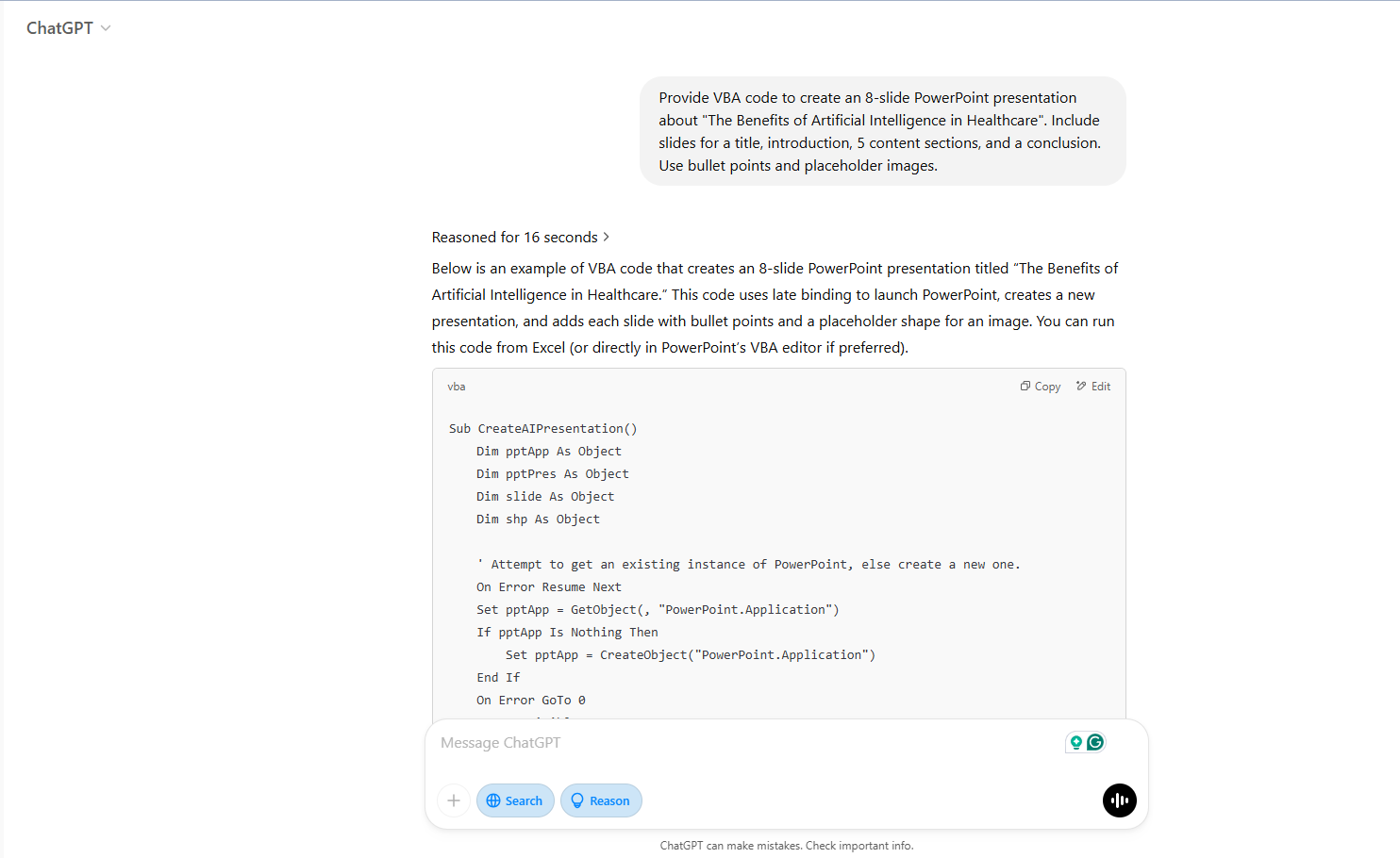
- Go to ChatGPT and use this prompt:“Provide VBA code to create an 8-slide PowerPoint presentation about [Your Topic]. Include slides for a title, introduction, 5 content sections, and a conclusion. Use bullet points and placeholder images.”
(Example topic: “Benefits of Artificial Intelligence in Healthcare”)
Step 2: Enable Developer Mode in PowerPoint
- Open PowerPoint → File → Options.
- Click Customize Ribbon → Check Developer → Click OK.
Step 3: Insert the VBA Code
- Go to the Developer tab → Click Visual Basic.
- Right-click VBAProject → Insert → Module.
- Paste ChatGPT’s code → Press F5 to run it.
Pro Tip: Save your file as a .pptm (macro-enabled) file.
Step 4: Customize Your Presentation
- Replace the placeholder text with your content.
- Add images/icons via Insert → Pictures.
- Use Design Ideas (right sidebar) for auto-generated layouts.
FAQs: ChatGPT PowerPoint Automation
- Does this work on Mac?
Yes, but VBA requires PowerPoint 2016 or later. Use “Design Ideas” for Mac-friendly automation. - Can I edit the VBA code?
Absolutely! Ask ChatGPT, “How to modify VBA code to add 10 slides?” - Is this method safe?
Yes—VBA is built into PowerPoint. Avoid unverified third-party code.
Pro Tips to Enhance Your PPT
- Use ChatGPT for content: Ask for “5 bullet points on [subtopic]”.
- Add animations: Prompt ChatGPT, “How to add slide transitions via VBA?”
- Export to PDF: Use VBA code to automate saving/exporting.
Conclusion
With ChatGPT’s VBA code, you’ve just created a PowerPoint presentation 10x faster—and it’s ready to impress your audience. For more time-saving hacks:
- Download our free VBA template (link to a lead magnet).
- Read next: How to Use ChatGPT for Excel Automation.
CTA: Tried this method? Share your PPT results in the comments!